The missing element from the net neutrality debate

The net neutrality debate should really boil down to one issue. Am I, as a consumer, getting what I paid for? The answer is NO!

Are we not paying for bandwidth?

Internet access is sold based on the speed of the connection. Not to pick on Time Warner but they are one of the opponents of net neutrality so they are fair game. A quick Google search finds their online rates:

From: http://www.timewarnercable.com/en/internet/internet-service-plans.html on 9/29/2014.

Time Warner Internet Price Sheet

As a consumer, I am asked to purchase Internet service based on the speed of that service. If you click a button to see more details they do have a small disclaimer at the bottom stating that I may not get as much bandwidth as I have paid for.

Time Warner Disclaimer about bandwidth

OK, so according to TWC, and every other ISP, I am paying for bandwidth that I might or might not actually get. Knowing how the Internet works, protocol limitations, etc. keeps me from being upset about this. Put simply, no ISP can control every factor that affects bandwidth.

I should be able to choose how I use my bandwidth

So, I have bandwidth. How do I want to use it? Perhaps I want to download something using all my available bandwidth.  Perhaps I want to browse the web while listening to some music online. Perhaps I don’t want to use any right now. Regardless, I paid for the bandwidth and should be able to use it all for whatever site I choose.

Looking at the terms of service, TWC doesn’t say they will limit the amount of bandwidth I use for any given site:

Time Warner Terms of Service

 So, why can’t I get my bandwidth?

If I want to stream movies all day long, I should be able to do that. I paid for the bandwidth. I did not exceed my limits. They are selling me something and not allowing me to use it. How would we feel about other industries that did the same thing?

  • $10/month for 200 texts but only one text a day to people that text a lot. 
  • $40 for two hours of babysitting but they only stay one hour if you use them regularly.
  • $80 to clean your house but they start skipping rooms if you hire them more than once a month. 

We would not stand for this from any other service, why do we take it from ISPs?

Give us what we pay for or change the way you sell it.

If you sell bandwidth, deliver bandwidth. If you don’t have the capacity to provide what your customers are paying for, increase your rates and improve your network. If you are worried about how the top 1% of customers using too much bandwidth, switch to a metered system like electricity or water. Do whatever it takes to actually deliver what people are paying for. Anything less should be, if it isn’t already, criminal.

The perfect but perhaps extreme solution for SPAM

As a decision maker in IT, I get dozens of unsolicited email messages a day. That may not sound like much but that is after some rather extensive anti-spam techniques:

  1. I never give out my email address except when I need to do business with someone.
  2. When people call and ask if they can email me a whitepaper I say NO.
  3. My spam filter blocks 95% of all email sent to my domain, and thus me.
  4. I unsubscribe from every email list I end up on.
  5. If a vendor does not have an unsubscribe function when they send me email I have a button I click which adds their domain to my blacklist and sends them a message that they have been blocked for not complying with the CAN-SPAM act. (I take particular joy in this … is that wrong?)

Still, I get SPAM. This frustrates me because I am in a position where I have to check email when it comes in. I get notified when a system is down via email so not checking is not wise. That means that the 20-30 unsolicited marketing messages that get through interrupt my work.

Enter the extreme SPAM filter process

Step 1: Who do I want mail from?

I want email from

  • everyone in my company
  • anyone I do business with
  • anyone in my contact list

I don’t want email from anyone else.

Is this reasonable? Is there any compelling business reason to accept unsolicited email from everyone? In my position, I am not looking for new customers so blocking email shouldn’t affect my ability to do my job. The amount of time that is spent deleting unwanted email far exceeds any benefit I get from it. It just seems rude to ruthlessly block the world but then again, they are interrupting my day without my consent. I would love to know everyone else’s thoughts on this.

Step 2: Setting up the filter

Outlook Safe Sender ListUsing Outlook 2013 I can easily set this up.

In Outlook, on the Home Tab, select Junk –> Junk Email Options.

Click the Safe Sender Tab

Add every domain you know you want to receive mail from. Frankly, this will take a while. You have to add all your domains, all the domains your devices send mail from, and all the domains of the vendors your work with. I spent some time sorting through my saved email to come up with this list. I tend to whitelist domains instead of users.

I recommend checking Also Trust Email from my Contacts and Automatically Add People I Email to the Safe Sender List.

Step 3: Applying the filter

Junk Email Options in Outlook 2013

Click on the Options tab and choose Safe List Only.

Now email from someone not white-listed in the Safe Sender Tab is sent to your junk folder.

For the next month, you are going to want to pay attention to your junk folder and continue to white-list people you need to get email from.

I also try to add vendors as contacts since I do business with them and that keeps me from having to add them to the white-list.

Step 4: Not missing something important

Looking through all the junk in your junk mail folder is annoying but you need to do this regularly until you are sure you are not missing messages.

When you find a message you need in the junk mail folder, right click it –> junk –> Not Junk. I then delete all the mail in my junk folder to make skimming it later less of a chore.

Go back to the Safe Sender List you created earlier. You will notice lots of individual email addresses like bob@domain.com. If you need email from everyone in that domain, edit the entry so that only the domain name is left. (@domain.com)

A new way of thinking about email

Junk folder in Outlook FavortiesI added the Junk folder to my favorites and moved in under the inbox. Because you have to check junk mail regularly you essentially have two inboxes. The first “Junk” inbox won’t make your phone beep, won’t make your computer beep, and won’t interrupt your day. Yes, you have to check it but over time that becomes less important.

The Inbox becomes a priority inbox from people you actually need to hear from and have your permission to interrupt your day.

Alternatives that are less extreme

I use this method because I only get notified of email that I have specifically approved. I find that I have to check my junk mail folder more often but since those messages don’t interrupt me, I am not losing productivity when they arrive.

You could accomplish something similar using rules and changing the notification settings.

Another option is to change how often Outlook checks for email. Setting it to 30 minutes guarantees you a half hour of productivity before someone derails your day.

Well, I hope this helps you stay productive. It has helped me but took a while to “fine tune.”

How to clean up Active Directory: Step 2 – delete Distributed Link Tracking objects

Continued from How to clean up Active Directory: Step 1 – old computer objects

I found tens of thousands of unused records in AD left over from the Windows 2000/2003 days. In fact, almost 80% of my AD Database consisted of records that served no purpose.

If you AD Domain has been around since the Windows 2000 days, you need to check this.

Windows 2000 used to store records in AD about file locations on NTFS volumes. In my domain that meant tens of thousands of records. In a child domain we found hundreds of thousands of records. This feature has been disabled since Windows 2008 so if your domain is Windows 2008 or higher, these records are trash.

Finding FileLink objectsPath to FileLink

Open AD Users and Computers –> Expand you domain –> System –> FileLinks

This is a good time to make a backup of your AD Database and verifying you know how to restore it. 

Look in the ObjectMoveTable and VolumeTable folders. If you see any records there, you can delete them.

Deleting FileLink records

You can delete any object under the ObjectMoveTable and VolumeTable folders. I did not delete the folders.

Microsoft has a script which is supposed to delete them but I was never able to get it to work. I ended up deleting the items one page at a time using AD Users & Computers. This took a little time but ended up being faster than fixing the script.

If you are a script guru it might be worth your time to write something but since this is a “Do One Time” task, I didn’t see the value. I just drank some coffee, clicked select all, delete, sip, repeat.

How to clean up Active Directory: Step 1 – Old Computer Objects

Keeping Active Directory clean and organized is important. It doesn’t take long for hundreds of unused objects or accounts to accumulate which leads to security problems and management nightmares. Auditors seem to have a special hatred for stale objects in Active Directory so keeping everything neat and tidy is a necessity.

Computer Accounts

When you join a computer to the domain, a computer account is created in AD. When you retire the computer it is best to remove it from AD. Many times IT departments forget to do this. Over time AD can easily contain hundreds of unused computer objects.

Getting rid of unused computer objects

Computer objects are easy to clean up. Every Windows computer has a domain account and password. Nobody ever sees the password but the computer knows it. Windows computers change their password every 30 days.

Unused computer account are those that have passwords that have not changed in more than 30 days.

If you want to know more about computer accounts and passwords read Microsoft’s Machine Account Password Process blog post.

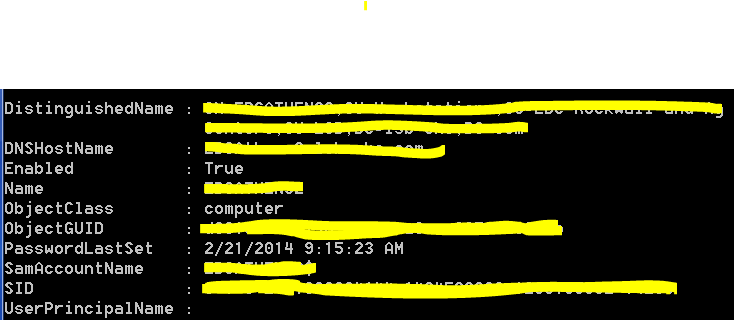
Using a PowerShell script we can easily find unused computer accounts.

$lastSetdate = [DateTime]::Now - [TimeSpan]::Parse("200")

Get-ADComputer -Filter {PasswordLastSet -le $lastSetdate} -Properties passwordLastSet -ResultSetSize $null | FL

This script finds any computer that has not changed it’s password in the last 200 days. That means the password should have been reset 170 days ago. Change the 200 to whatever value you think is appropriate but I can’t think of a reason to use a value less than 60.

Computer Object

Notice the PasswordLastSet field. This computer has not been used in over six months.

Remember that some computers don’t get used very often. Perhaps there is a computer in the conference room, a test server that is off most of the time, or some other rarely used computer. Those devices could easily go a long time without being used and thus have very old passwords. You probably don’t want to delete those.

What happens if you delete a computer account and need it?

If you delete a computer account and then find the computer in a store room, you will have to rejoin it to the domain. That is a simple process as long as you know the local administrator’s password.

Deleting computer accounts … the slow way.

Before you delete computer accounts you should verify that everything the script finds is unused. It might be best to simply open Active Directory Users and Computers, find the offending accounts, and delete them one at a time as you validate they are no longer in use. This is the cautions approach.

Deleting computer accounts … the fast way.

Once you are positive the script is returning computer accounts that you no longer need, you can modify the script to automatically delete them.

Be careful! Being careless could bring your network down. Verify the script is only returning items you want to delete. If in doubt STOP HERE.

$lastSetdate = [DateTime]::Now - [TimeSpan]::Parse("200")

Get-ADComputer -Filter {PasswordLastSet -le $lastSetdate} -Properties passwordLastSet -ResultSetSize $null | Remove-ADComputer

If you still have the same PowerShell window open you do not need to execute the first line again.

Notice the second line now ends with “Remove-ADComputer.” Hit enter and a few seconds later, all your old unused computer accounts are gone.

Cleaning up AD Computer Objects is simple and should be done regularly. Hopefully this makes the process simple for you.

Next: Clean up AD: Step 2!

Three reasons why most IT projects fail (to meet expectations.)

There are hundreds of factors that can affect the outcome of any IT project. After years of managing all types of projects I have come to the conclusion that failure is often due to a lack of balance between three competing forces.

  • How fast you try to finish the project.
  • How frugal (or cheap) you are being.
  • How much you want the system to do.

There are many variations on the three legged stool analogy but they all state that you cannot have all three “legs.” I don’t agree. In fact, this type of thinking is dangerous. It only deals in extremes.

With so many things to go wrong, it is hard to get it right.

With so many things to go wrong, it is hard to get it right.

Although it is true you cannot build a highly complex system in days for a dime, you can build a system that has reasonable functionality in a reasonable time on a reasonable budget. The minute you move one of those factors closer to the extreme, the more likely you are to have a failed project.

So what is reasonable?

Reasonable is subjective and changes with each project. There is no magic formula to figure out what is reasonable. Each project does tend to have one “set in stone” factor.

  • If I need to replace my routers because they are old, and I don’t need any new functionality, then I know for sure what my functional requirements are. Now I only have to find a reasonable timeline and budget.
  • If I need to replace a CRM system with something new and unknown, I can set an upper and lower budget for the project and then keep the timeline and functional requirements within that budget.
  • If a product, like Windows XP, is being retired and must be replaced, I have a firm timeline. I only need to find the right balance between cost and functionality.

In most cases you only have to balance two factors, not all three.

Finding balance

This is not a joke: If everyone is a little unhappy, you have probably done well. Balance is about finding the middle ground which means someone will be disappointed. The budget conscious will feel like it was slightly more expensive than they wanted. The time conscious will feel it took too long. The rest will feel like some “nice to have” features are missing. Although this sounds bad, it is really project nirvana.

If one group is really happy, you focused too much on them. You gave them too much which throws the project out of balance. You have all the killer features but blew the budget or timeline.

Balancing a moving target

The most complicated projects I have worked on are software implementations like CRM or ERP. They always have an incomplete list of functional requirements. They always have a budget and timeline based on estimates from a vendor with an unclear understanding of the unclear requirements. The entire project is based on nothing but guesses which is why they often fail to meet expectations. The requirements always grow, the budget always grows, and the timeline always grows yet both the vendor and customer blame each other for the overage.

For projects like this, you must have (or be) a project manager that keeps all three factors in everyone’s mind at all times. You can’t add features without adding time and budget. You can’t set a deadline in stone unless you also freeze your requirements.

Who owns the leg

Just to make things more difficult, each leg of the stool, or factor, is generally managed by different groups. A senior manager or executive may be in charge of the budget while the IT team might be in charge of the timeline while some department head may be in charge of the functional requirements. They each look almost exclusively at their leg of the stool and say “My leg is the wrong length, fix it!” They don’t always care about the other legs and that means you have to balance requirements by getting three or more groups to understand each other’s needs. The project manager may need a degree in counseling to get some groups to work well with each other. If you can’t get all the groups to work together, the project will almost certainly fail to meet expectations.

Think balance, every day

You have to start a project in a balanced state. You have to consider how every decision you make affects the balance of the project. You have to communicate how each decision affects the project balance. If you end with a reasonable balance between cost, timeline, and functionality you hit a very small moving target. It feels like nothing less than a miracle.

Is Linux or Windows 8 easier to use?

I have been using the original Surface as my laptop since it was released. To mu surprise iy has worked out very well. All of my applications, including odd ones like NMAP, work great. The only thing I dislike is the lack of ports. One USB port makes working with external devices a pain. I have purchased USB adapters so I can connect to devices via serial ports. The one things I have not purchased and that kills me is a USB to Ethernet cable. There are times I cannot be plugged into a docking station and need an Ethernet port. All things considered though, the Surface is a great laptop.

The one thing I still struggle with is Windows 8. (Yes, I updated to Windows 8.1 but it is still a pain to work with.) I open a PDF and it goes into tiles mode. Switching between the desktop and tiles is an insane design at best. Running on the desktop only seems like trying to avoid the inevitable. I have really tried to get comfortable with Windows 8 but the UI is just bad. It is by far the worst UI ever designed simply because you basically are using to operating systems at once.

I needed a laptop with a bunch of ports so I took an abondoned Windows 8 laptop and loaded Ubuntu Linux. (It was harder to delete Windows than it was to load Linux.) To my great surprise the load went well. The laptop had a touch screen which Ubuntu detected. Everything just worked. Installing software and hardening the OS was simple for an IT guy. What amazed me though was the interface.

When I use Linux, I typically don’t even load the GUI. What can I say, I love text only CLI interfaces on Linux. (I hate the Cisco CLI though.)  This was the first time I loaded a GUI on Linux in years. Frankly, the GUI was stunning

In all fairness, the Windows 7 interface is probably easier to use because it is about the same as every other version of Windows going back to 98. I realized that the change from Windows 7 to Ubuntu was minimal while the change form Windows 7 to Windows 8 was gut wrenching.

I am considering doing some A/B testing with users. I believe that if I were to have one group use Ubuntu and another use Windows 8 I would find the Ubuntu crowed more efficient. I might concede that they would be equally proficient but for the cost savings Linux would bring, why not use Linux?

I won’t inflict anything on end user that I won’t inflict on myself. I decided to go rouge and use Ubuntu as my only work laptop.

  • Email: Evolution seems to be a fine Outlook replacement. It does everything I need. I don’t know if it will work with Office 365 or newer version of Exchange though. If it doesn’t work, I can live with email on my phone and OWA.
  • Web Browsing: Everything but Internet Explorer. If you have to have IE, Linux won’t work.
  • JAVA: I have yet to get websites that use JAVA to work on Chrome. I will eventually but that seems to be a pain. (Hints are welcome.)
  • Security Tools: NMAP, Wire.Shark, and all my other favorite tools work better on Ubuntu than Windows. I run these on Linux anyway.
  • Visio: I love Visio but DIA seems to work well enough for me to diagram everything I need to diagram.
  • Office: LibreOffice does everything I need. I have yet to try to load a bunch of my Office docs in Linux but I suspect they will work. If not, I am willing to convert them all over time. I don’t use Office much anyway. I would prefer to use the web apps in either Office 365 or Google Apps anyway.
  • RDP: Yep, I can remote control all my servers.
  • Putty: I can remote control everything else
  • Printing: Paper is dead. I never print. I’ll have to test it at some point though.
  • Patching: We use Dell’s KACE system for patching. It works on some flavors of Linux. I still need to test this. If it doesn’t work, I can use the built in patching engine to keep everything updated.
  • Encryption: You can encrypt the hard drive during installation making laptop theft less of an issue. Password management might be a pain but so is data loss.

I don’t know if I would throw Ubuntu into production but if Windows 9 isn’t significantly easier to use, it may be hard to justify the cost of Windows anymore.

Are you listening Microsoft?

One critical issue to consider before using a cloud or browser based application

I used to believe that browser based applications would significantly reduce the time and effort required to deploy and manage applications. I am almost ready to ask my vendors for a fat client, meaning one I have to install on every PC.

The ugly truth

I have been dealing with two products from Oracle. The first is JD Edwards and the Second is Hyperion Financial Management. They are both browser based meaning I don’t need to install any applications on the end user PCs. I just send them a link and they can use the application … except that they can’t.

Today is June 18th, 2014. Internet Explorer 11, Firefox 30, and Windows 8.1 are the most current versions available today. (Firefox ESR 24 is available as well.)

Here are the browsers supported by Oracle for one of the products:

Oracle Supported Browser Versions

You may have noticed Internet Explorer and Firefox are the only two browsers supported. You will also notice that Firefox won’t work without an add-on and even then won’t work in every module. So, to use this product, I have to use Internet Explorer 9 or earlier.

I also have PCs running Windows XP, 7, 8 , & 8.1. A little research shows that I am in trouble.

Windows and IE versions

  • Windows XP: IE 8 is supported! Maybe I’m glad I waited to upgrade?
  • Windows 7: IE 8 was installed out of the box but most users upgraded to IE 10. I will have to downgrade them all back to IE 9.
  • Windows 8 & 8.1: Can’t run anything less than IE 10. No Oracle products for you!

It get’s worse! Major version upgrades are now automatic.

Starting with IE 10, the browser will automatically upgrade major versions when they are released. So IE 10 users will automatically move to IE 11, 12, 13, etc. You can disable the feature through group policy but you also have to prevent the user from installing newer versions themselves. I am not against automatic browser upgrades but in this case it will break my business critical applications.

It get’s worse! Not all products have the same requirements.

This is only one of the systems I manage that have draconian browser requirements. Other Oracle applications have different browser requirements. Some won’t run on older browsers while others won’t run on newer. It is getting difficult to keep everyone on a browser version that will work. It would be less complicated to push out a client application than to manage this nightmare.

Shame on Oracle … and everyone else.

If you are going to write a web based application, keep it up to date. You are essentially writing an application that shares the same “display application” as other applications and staying years behind the update curve causes problems for everyone. I understand this means we might have to upgrade the Oracle applications themselves but that isn’t even an option right now. Keep current or write your own client. That should be a law.

Cloud applications tend to be the opposite.

Most cloud applications are browser based. The difference is, they are updating their application all the time. Most cloud applications like Salesforce, Office 365, or Dropbox support the current and one older broswer version. Older than that and they won’t promise their application will work. I would much rather work at keeping my system up to date than keeping them years behind. They also tend to work with many browsers which makes life better.

So, browser based applications are NOT the  solution I had hoped for. I would spend less time supporting them if I simply had to install an application.

IT Security Tip: When not to be helpful

If you manage IT and have a phone you probably get dozens of calls a day from sales people and researchers. Most of them are very good at keeping you on the phone.

It is in our nature to want to help people

The calls always start with a very chipper person introducing themselves and their company. Researchers often add that they are not trying to sell anything. This is followed up by a question like “What are you using for storage?” It is difficult not to answer. We want to be helpful. Why shouldn’t I answer?

Giving out information about your network is a security risk

I suspect I could call 10 IT people and get critical configuration information from five of them by pretending to be a salesperson, researcher, or peer.

  • What firewall are you using?
  • What VPN solution do you have?
  • Do you have any issues with it you would like to see fixed?
  • Do you struggle with patch management?
  • What log management system are you using?

All of this information can be used to design an attack against your company.

Ask yourself who needs to know this information?

Nobody outside your organization needs to know how your network is configured.

What happens if the vendor or researcher gets hacked?

If I were a hacker, I would want to get hold of any vendor’s CRM database. That could contain a significant amount of information about a potential target’s networks. How secure is the data you provide to vendors? Why take the risk?

What to say when someone calls and asks “What product do you use for xyz?”

I am not allowed to provide that information over the phone. Repeat that as often as needed. You can add that you are constrained by policy and cannot provide them any information about the network, software, or anything else.

Bonus tip: How to get a vendor off the phone

Unless this is a vendor you want to talk to, simply tell them you are not soliciting new vendors at this time. Don’t tell them you do or do not have a solution, that is a security risk. Just tell them you are not looking for new vendors, thank them, and hang up.

I even added a short blurb at the end of my voice mail message that says “If you are a vendor, we are not soliciting new vendors at this time. Messages will not be returned.” I am polite but it is a way of letting them know I don’t want to keep getting calls. If I am looking for new vendors I might say “If you are a vendor for XYZ products, please leave a message. We are not soliciting other vendors at this time.”

Some people think that is rude. I find the decrease in SPAM voice-mail a relief.

Bonus bonus tip: Decrease unsolicited email messages

I must gOutlook Junk Buttonet 20 email messages a day from vendors asking me to meet with them to discuss how they can save me money, time, etc. I save more time by not reading their email. (Yes, I am a little bitter at the massive amount of junk mail I have to wade through.)

Outlook has a feature which many people overlook. Simply click on the Junk button and select, “Block Sender.” You will never get an email from that person again.

If you want a more extreme way of blocking junk, you can try something I have been experimenting with.


Updated 09/23/2014 for grammatical errors.


Why you should check your firewall configuration … now.

When was the last time you checked your firewall configuration? Well … that’s too long.

If you are a firewall administrator, you probably live in your configuration files. Everyone else looks at them when they need to make a change.  This leads to the ever common problem of “Why is that there?

Every time I start a new job, I eventually have to look into the firewall and see what lives there and why. Many of the rules make sense. Here is one for an email server. Here is another for remote access to some application. Here is one for some system … to do something … for some reason. Firewall rules without a documented purpose are a problem waiting to happen.

Imagine finding rules in firewalls that allow access for vendors that were fired years ago or  administrators long departed. Firewall configurations never seem to shrink. We add new rules when we need them but deleting a rule … well … that’s terrifying.

Do I delete the rule? What will break? How long will it take to break? Do I risk it?

Manage your firewall

Managing the firewall is a process that never ends. It is also very easy to forget to do. Here’s a program that works well for most companies without a dedicated firewall administrator:

  1. Backup your config file. Seriously, back it up to a secure location where you can store it for at least a year.
  2. Change your password. It should be changed once a year.
  3. Go through your rules. Most firewalls have a hit counter that shows how many times a rule is used. Reset the counter and wait a day or so. You will quickly see which rules are important.
  4. Delete any disabled rules unless you just disabled them. No reason to keep old disabled rules in the config file for a decade or more.
  5. Label everything. Don’t use rules like “Allow 25 to 10.0.0.1 from 0.0.0.0.” Try to use names when you can. Rules should be human readable if possible. “Allow  SMTP (email) to CorpSpamFilter from TheInternet” is much easier to read.
  6. If you don’t know what it is and nobody else does either, disable the rule. You can always enable it within seconds but it would be better to know why a rule is there than to let unknown traffic through. In all fairness, be very careful. Do lots of research. Just turning a rule off can be a disaster so cross your Ts and dot your Is before disabling a rule.  Do NOT delete the rules yet.
  7. Schedule your next firewall audit. If you rarely make rule changes, you may only need to check the firewall every year. If you are on the firewall every week, you may need monthly audits. Put this on your calendar even if it is a year away.
  8. Smile, you just made your network a safer place. Repeat this process every month, quarter, or year.

Know what you know and when to say NO!

I know my way around a firewall. I have been configuring them for 15 years. Access control lists are something I can do in my sleep. But on a Cisco firewall, I don’t touch the VPN settings. I call in an expert to keep me from breaking my own network.

I audit my VPN configuration at the same time as my firewall configuration. My Cisco consultant works across from me looking through VPN config files for things we no longer use or could use better. I look through the firewall rules. In the event I need help with something, I have help.

Since I am a generalist in my job, I cannot know everything there is to know about every system I manage. When I know I am over my head, I get an expert. Firewalls are too important to tinker with.

Save your work

Don’t forget that some firewalls have a running configuration that is lost every time you reboot. That’s great when you fry the config and need it back the way it was before you started. That’s terrible when all the changes you made last month got lost when you updated the firmware. Remember to save the running config to the startup config once you know everything works as it should. (Put an event on your calendar to remind you if you need to.)

Take you time but it does get easier

The first time you do this it will be a slow process. There will be lots of research and issues. The second time will be easier. You will remember why most of the rules are there. You will be able to read them. After a few years, firewall maintenance will be a simple task.


Why Microsoft should abandon Windows (Sort of)

When nothing but the PC existed, it was easy to have a one-size-fits-all operating system. Now that computers are shaped like phones, tablets, laptops, and legacy PCs the one-size-fits-all operating system just doesn’t work. Continuing to try to make Windows work on a modern phone AND legacy PC is killing Microsoft. How would I fix it?

Kill Windows

No, not really, but release a final version of Windows that runs on PCs and Laptops which we will all be calling legacy devices soon enough. Commit to supporting “Windows Legacy” with security patches for 10 years so enterprises will have time to migrate their custom apps to a new platform. This is the operating system for businesses that can’t let go of the past.

Windows Next

Come up with some clever name for the tablet/phone version of Windows using the new interface, formally known as Metro. Basically this would be like the Windows RT operating system where you can run new apps but nothing legacy. The desktop is dead once and for all. I love the desktop but face it, it won’t work on mobile devices which is what we will all be using soon.

Stop forcing us to buy Office

Microsoft Office is the best productivity application on the market but most users only need a small percentage of the features is has. Products like Google Apps are good enough for most users today and will be more than enough soon. In order to compete, create a simple version of Office for “Windows Next” and create a final “Office Legacy” product for “Windows Legacy.”

Frankly, I hope it doesn’t sell, because we will all be using Office 365.

Focus on the cloud

Enough with desktop installation and patching. Enough with per machine licenses. Enough, enough, enough. Focus on Office 365, CRM Online, and migrating business applications to the cloud.

If it won’t run in a web browser, it shouldn’t be developed. Well, perhaps that is an overstatement but if it does require a client, it should work equally well on every operating system. It should also run equally well on any web browser.

Microsoft should stop trying to save Windows by making software that only runs on Windows. Instead, they should be writing applications that work on any device. Microsoft needs to admit it has lost the battle for control of end user devices and focus on applications.

Make something we want to use again

Microsoft products are loved by few. Office is great but more and more people are willing to give it up due to the staggering price. Internet Explorer is rarely used outside of a legacy application requiring it. Businesses are avoiding Windows 8 like the plague. And Office 365 works best if you run a full version of Microsoft Office … which requires Windows.

Microsoft has the resources to build a product everyone wants to use. I honestly think they could have the best cloud products out there if they would stop trying to save Office and Windows by tying all their products to them.

I know it is a hard pill to swallow but Windows cannot be all things to all people anymore. It is time to do something different.