How to clean up Active Directory: Step 2 – delete Distributed Link Tracking objects

Continued from How to clean up Active Directory: Step 1 – old computer objects

I found tens of thousands of unused records in AD left over from the Windows 2000/2003 days. In fact, almost 80% of my AD Database consisted of records that served no purpose.

If you AD Domain has been around since the Windows 2000 days, you need to check this.

Windows 2000 used to store records in AD about file locations on NTFS volumes. In my domain that meant tens of thousands of records. In a child domain we found hundreds of thousands of records. This feature has been disabled since Windows 2008 so if your domain is Windows 2008 or higher, these records are trash.

Finding FileLink objectsPath to FileLink

Open AD Users and Computers –> Expand you domain –> System –> FileLinks

This is a good time to make a backup of your AD Database and verifying you know how to restore it. 

Look in the ObjectMoveTable and VolumeTable folders. If you see any records there, you can delete them.

Deleting FileLink records

You can delete any object under the ObjectMoveTable and VolumeTable folders. I did not delete the folders.

Microsoft has a script which is supposed to delete them but I was never able to get it to work. I ended up deleting the items one page at a time using AD Users & Computers. This took a little time but ended up being faster than fixing the script.

If you are a script guru it might be worth your time to write something but since this is a “Do One Time” task, I didn’t see the value. I just drank some coffee, clicked select all, delete, sip, repeat.

How to clean up Active Directory: Step 1 – Old Computer Objects

Keeping Active Directory clean and organized is important. It doesn’t take long for hundreds of unused objects or accounts to accumulate which leads to security problems and management nightmares. Auditors seem to have a special hatred for stale objects in Active Directory so keeping everything neat and tidy is a necessity.

Computer Accounts

When you join a computer to the domain, a computer account is created in AD. When you retire the computer it is best to remove it from AD. Many times IT departments forget to do this. Over time AD can easily contain hundreds of unused computer objects.

Getting rid of unused computer objects

Computer objects are easy to clean up. Every Windows computer has a domain account and password. Nobody ever sees the password but the computer knows it. Windows computers change their password every 30 days.

Unused computer account are those that have passwords that have not changed in more than 30 days.

If you want to know more about computer accounts and passwords read Microsoft’s Machine Account Password Process blog post.

Using a PowerShell script we can easily find unused computer accounts.

$lastSetdate = [DateTime]::Now - [TimeSpan]::Parse("200")

Get-ADComputer -Filter {PasswordLastSet -le $lastSetdate} -Properties passwordLastSet -ResultSetSize $null | FL

This script finds any computer that has not changed it’s password in the last 200 days. That means the password should have been reset 170 days ago. Change the 200 to whatever value you think is appropriate but I can’t think of a reason to use a value less than 60.

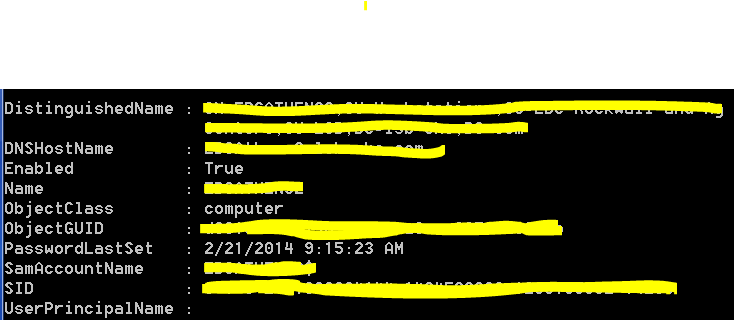
Computer Object

Notice the PasswordLastSet field. This computer has not been used in over six months.

Remember that some computers don’t get used very often. Perhaps there is a computer in the conference room, a test server that is off most of the time, or some other rarely used computer. Those devices could easily go a long time without being used and thus have very old passwords. You probably don’t want to delete those.

What happens if you delete a computer account and need it?

If you delete a computer account and then find the computer in a store room, you will have to rejoin it to the domain. That is a simple process as long as you know the local administrator’s password.

Deleting computer accounts … the slow way.

Before you delete computer accounts you should verify that everything the script finds is unused. It might be best to simply open Active Directory Users and Computers, find the offending accounts, and delete them one at a time as you validate they are no longer in use. This is the cautions approach.

Deleting computer accounts … the fast way.

Once you are positive the script is returning computer accounts that you no longer need, you can modify the script to automatically delete them.

Be careful! Being careless could bring your network down. Verify the script is only returning items you want to delete. If in doubt STOP HERE.

$lastSetdate = [DateTime]::Now - [TimeSpan]::Parse("200")

Get-ADComputer -Filter {PasswordLastSet -le $lastSetdate} -Properties passwordLastSet -ResultSetSize $null | Remove-ADComputer

If you still have the same PowerShell window open you do not need to execute the first line again.

Notice the second line now ends with “Remove-ADComputer.” Hit enter and a few seconds later, all your old unused computer accounts are gone.

Cleaning up AD Computer Objects is simple and should be done regularly. Hopefully this makes the process simple for you.

Next: Clean up AD: Step 2!

IT Security Tip: When not to be helpful

If you manage IT and have a phone you probably get dozens of calls a day from sales people and researchers. Most of them are very good at keeping you on the phone.

It is in our nature to want to help people

The calls always start with a very chipper person introducing themselves and their company. Researchers often add that they are not trying to sell anything. This is followed up by a question like “What are you using for storage?” It is difficult not to answer. We want to be helpful. Why shouldn’t I answer?

Giving out information about your network is a security risk

I suspect I could call 10 IT people and get critical configuration information from five of them by pretending to be a salesperson, researcher, or peer.

  • What firewall are you using?
  • What VPN solution do you have?
  • Do you have any issues with it you would like to see fixed?
  • Do you struggle with patch management?
  • What log management system are you using?

All of this information can be used to design an attack against your company.

Ask yourself who needs to know this information?

Nobody outside your organization needs to know how your network is configured.

What happens if the vendor or researcher gets hacked?

If I were a hacker, I would want to get hold of any vendor’s CRM database. That could contain a significant amount of information about a potential target’s networks. How secure is the data you provide to vendors? Why take the risk?

What to say when someone calls and asks “What product do you use for xyz?”

I am not allowed to provide that information over the phone. Repeat that as often as needed. You can add that you are constrained by policy and cannot provide them any information about the network, software, or anything else.

Bonus tip: How to get a vendor off the phone

Unless this is a vendor you want to talk to, simply tell them you are not soliciting new vendors at this time. Don’t tell them you do or do not have a solution, that is a security risk. Just tell them you are not looking for new vendors, thank them, and hang up.

I even added a short blurb at the end of my voice mail message that says “If you are a vendor, we are not soliciting new vendors at this time. Messages will not be returned.” I am polite but it is a way of letting them know I don’t want to keep getting calls. If I am looking for new vendors I might say “If you are a vendor for XYZ products, please leave a message. We are not soliciting other vendors at this time.”

Some people think that is rude. I find the decrease in SPAM voice-mail a relief.

Bonus bonus tip: Decrease unsolicited email messages

I must gOutlook Junk Buttonet 20 email messages a day from vendors asking me to meet with them to discuss how they can save me money, time, etc. I save more time by not reading their email. (Yes, I am a little bitter at the massive amount of junk mail I have to wade through.)

Outlook has a feature which many people overlook. Simply click on the Junk button and select, “Block Sender.” You will never get an email from that person again.

If you want a more extreme way of blocking junk, you can try something I have been experimenting with.


Updated 09/23/2014 for grammatical errors.